

IP Whitelisting
IP whitelisting means only the IPs you add can use your API tokens. Calls from any other IP are blocked.
This page is for you if you already have API tokens. Adding an IP here does not change your tokens. Your integration keeps working.
Before you start
- You need an admin login for the Xoxoday Admin Dashboard.
- Know the public IP address of every server that calls the API. If your traffic goes through a proxy or gateway, use its IP.
- You can add up to 10 IPs.
Whitelisting starts working right away. Add the IPs of all your servers first. Calls from servers that are not on the list will fail.
Add your IP
-
Go to Settings → API → Rewards API. Log in to the Xoxoday Admin Dashboard. If you have not added an IP yet, you will see a yellow bar at the top of the page.
(image: 01-action-required-banner.png) -
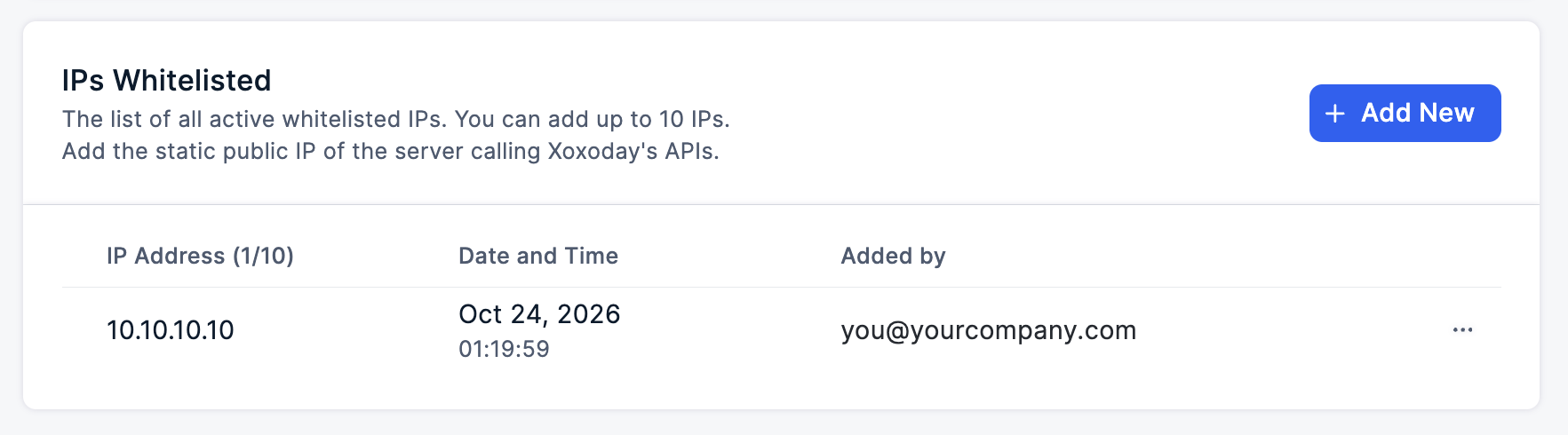
Scroll down to IPs Whitelisted and click + Add New.
-
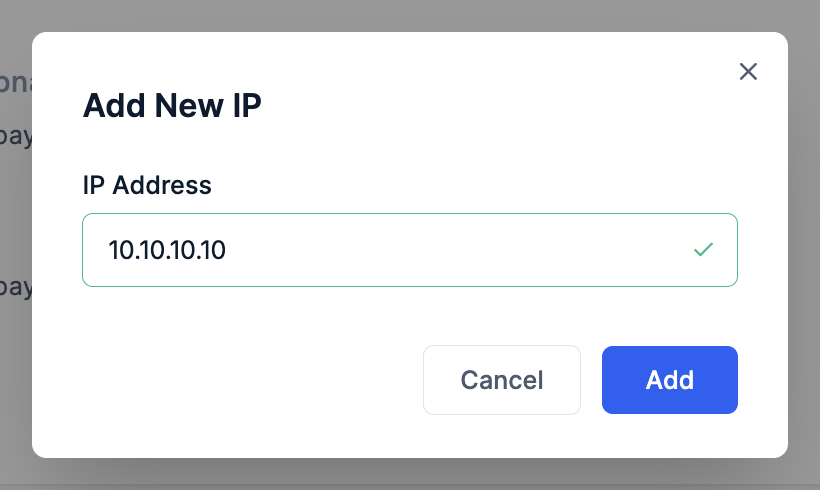
Type your server's IP and click Add.
-
Repeat for each server. Add every server that calls the API. The list shows each IP, when it was added, and who added it.
Check your work
Your IP shows in the IPs Whitelisted list. The yellow bar is gone. Your tokens keep working from the IPs you added.
Manage your IPs
| What you want to do | How |
|---|---|
| Add an IP | Click + Add New. The button turns off when you have 10 IPs. |
| Remove an IP | Click ⋯ on the row and remove it. Calls from that IP are blocked right away. |
| Change your only IP | Add the new IP first, then remove the old one. You must always keep at least one IP. |
If you click "Whitelist IP now" on the yellow bar: after you add the IP, a pop-up asks if you want to create new tokens. Click No, Cancel to keep your current tokens. If you click Yes, Generate, your old tokens stop working.
Problems?
My API calls fail after adding an IP. Your calls may be going out through a proxy or gateway with a different IP. Add that IP to the list too.
The + Add New button does not work. You already have 10 IPs. Remove one you no longer use.
See also
- Create Your API Key: get new keys and add an IP in one go.
- Configure IP Whitelisting: how IP whitelisting works.
Updated about 1 hour ago